
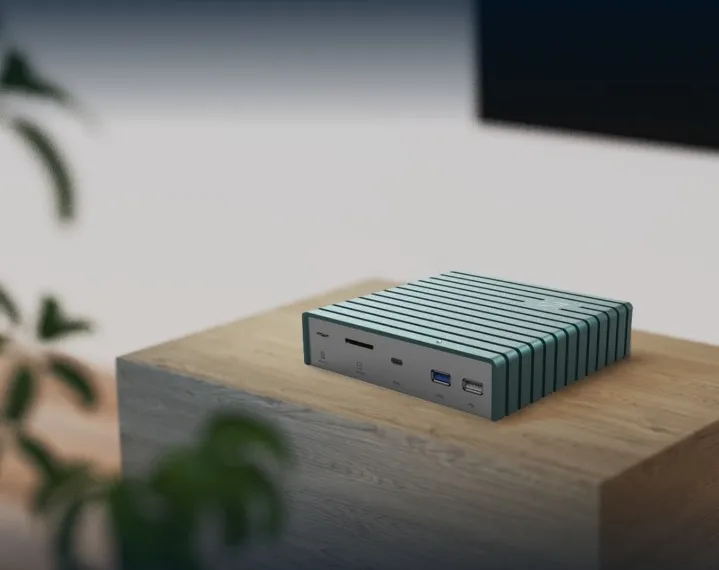
Features
16TB large-capacity storage
2× NVMe + 2× SATA3, 4 bays.
Home theater
4K HDMI output, native Kodi media system.
Low power, zero noise
12W typical power draw, 24/7 operation.
Overlay remote access
No public IP required; access your host securely from anywhere.
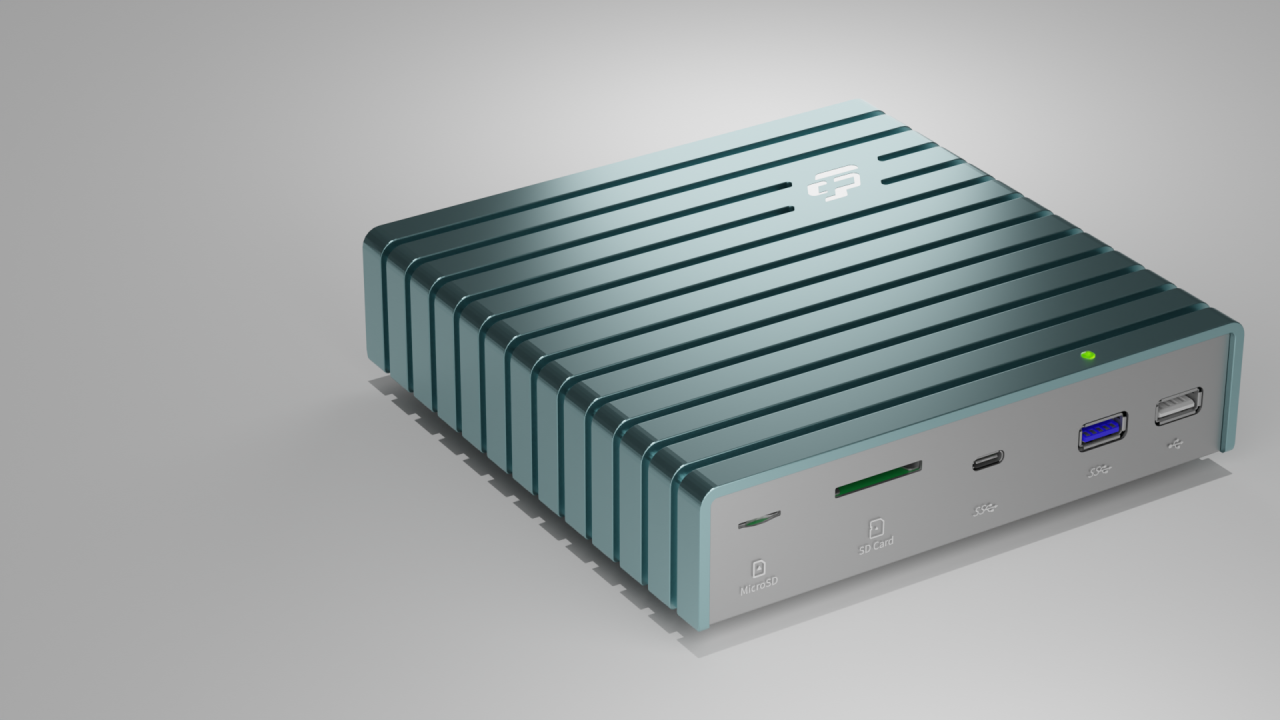
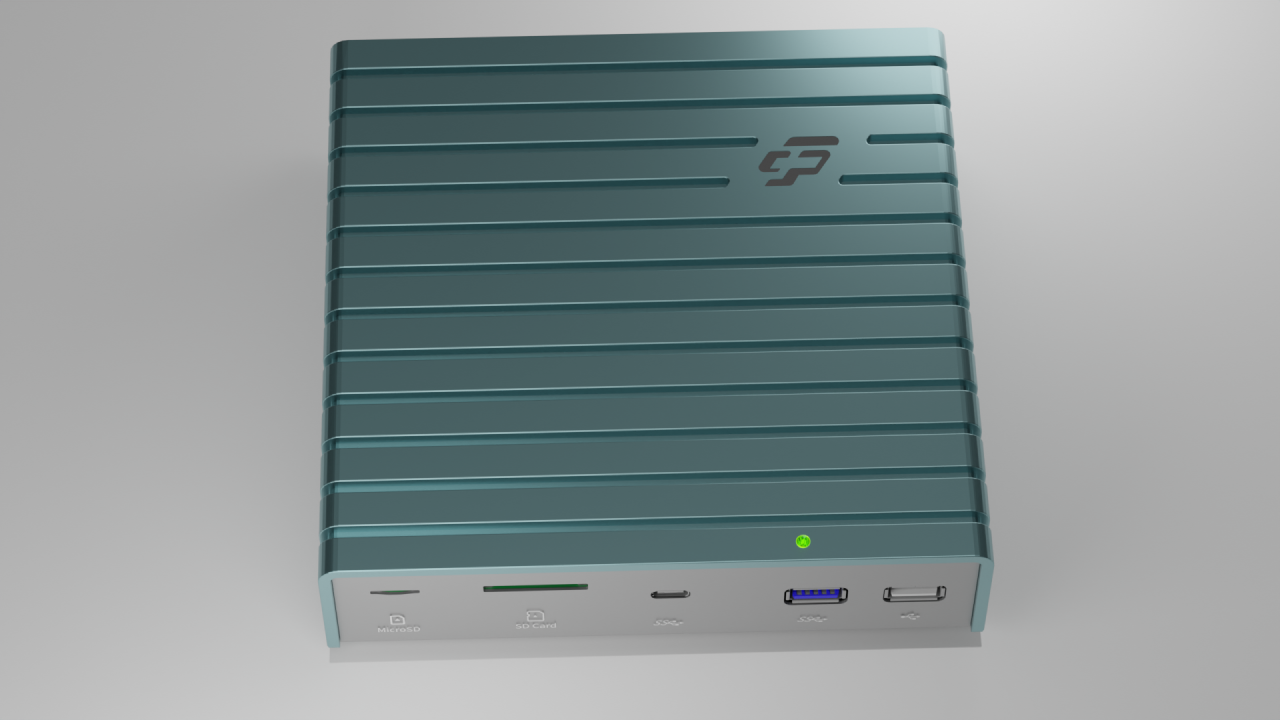
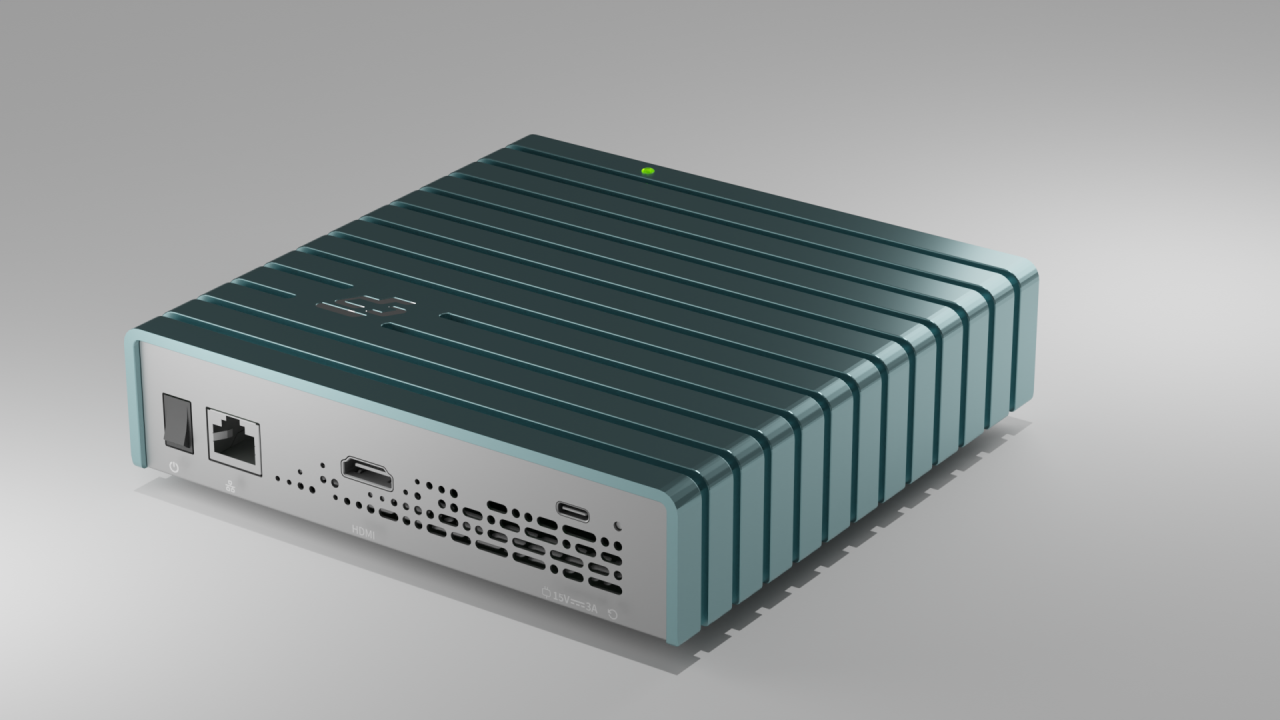
Out-of-the-box setup

Register the app
Following the prompts on the homepage, download the mobile app and install it. Open the registration page, submit your email address and password, and create a new account. Open your inbox and click the activation link in the email we sent (check your spam folder if you don’t see it). Then sign in to the app with your email and password.

Power on the host
The power port is on the rear panel. Use the included power adapter and cable to connect power. Optionally connect the HDMI port to a TV and plug the Ethernet cable into your router. Flip the power switch on the rear panel to start the host. The indicator LED changes from red to green when startup completes.

Pair the device
The first account paired with the device is set as the administrator. Enable Bluetooth on your phone and start scanning. Select primorial from the scan list to pair. On the Shudou app home screen, tap “Add device”. The app searches automatically; pick “Shudou” to connect and configure the host. The host status will appear once configuration succeeds.

All set
If the host is connected to a wired network, initial setup is complete. Otherwise the app automatically opens the Wi-Fi setup page. Pick a network from the scan list, enter the password, and tap connect.